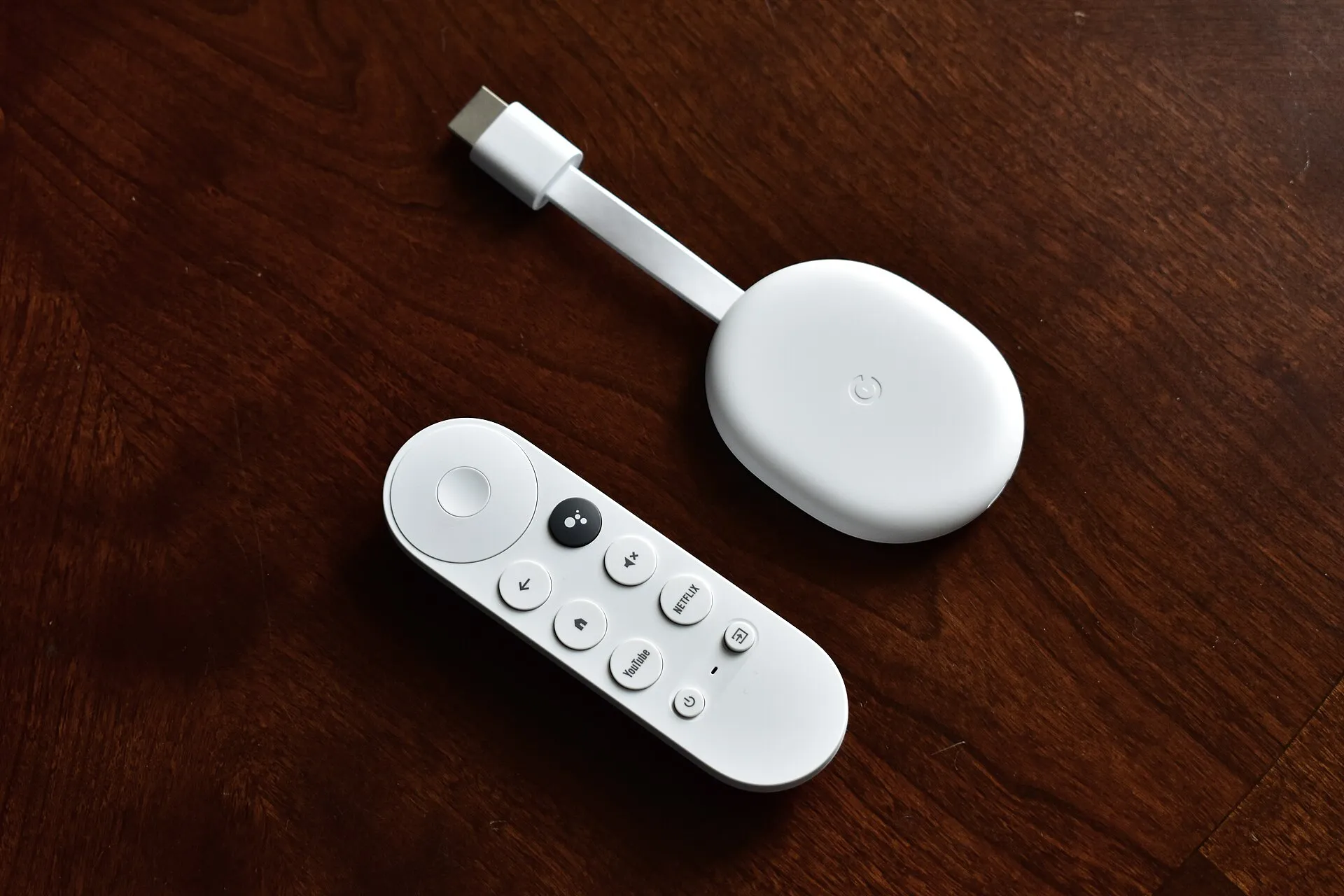
Get a Cleaner, Ad-Free Google TV Home Screen
Strip the sponsored rows and recommendations from Google TV with its built-in Apps only mode, or replace the home screen with Projectivy Launcher. Plus what still works on Fire TV, and what doesn't.
The Problem
Google TV’s home screen leads with a big rotating carousel that mixes things you might want to watch with paid promotions, and fills the rows below with recommendations and sponsored content. Our ad-free streaming device guide ranks the platforms; if you already own a Google TV device, this tutorial shows two ways to calm it down:
- Option 1: Apps only mode. Google’s own setting. It takes two minutes and is fully reversible, but it’s blunt.
- Option 2: Projectivy Launcher. A free replacement home screen with just your apps. Cleaner and very customizable, but it relies on a workaround that some 2026 Google TV updates have made unreliable.
These steps work on Google TV devices such as the Google TV Streamer, Chromecast with Google TV and Google TV televisions, and on Android TV boxes like the NVIDIA Shield. Fire TV is a different story, covered at the end.
Option 1: Turn On Apps Only Mode
- From the home screen, open Settings (the gear icon at the top right).
- Go to Accounts & Sign In and select your profile.
- Turn on Apps only mode.
The home screen reloads with just your apps, and personalized recommendations are gone.
What you give up:
- Search and the Google Assistant may not be available from the home screen.
- You can’t install new apps or games while it’s on; turn it off, install, and turn it back on.
- Some sponsored content or “featured” banners can still appear. It’s quieter, not ad-free.
To undo it, follow the same steps and turn Apps only mode off.
Option 2: Install Projectivy Launcher
Projectivy Launcher is a free home-screen app for Android TV and Google TV, with no ads of its own. It shows your apps in rows you arrange yourself, plus optional “continue watching” rows from apps that support them.
Step 1: Install It
On the TV, open the Google Play Store, search for Projectivy Launcher and install it. (If you turned on Apps only mode, turn it off first.)
Step 2: Make It Open When You Press Home
Google TV doesn’t let you pick a different default home screen, so Projectivy intercepts the Home button instead:
- Open Projectivy Launcher and go to its Settings → General.
- Turn on Override current launcher.
- Projectivy sends you to the system Accessibility settings. Select Projectivy Launcher and turn its service on. This permission is what lets it see Home button presses.
- Press Home on the remote. Projectivy should appear instead of Google TV.
Step 3: Set It Up
- Rearrange or hide apps: long-press an app on the remote for its options.
- Change the wallpaper, layout and rows in Projectivy’s settings. Rows can come from apps that provide them, if you want “continue watching” back without the ads.
Google TV’s own home screen is still installed. Open it from Projectivy any time, for example to reach Google’s search or the Google TV watchlist.
If Home Stops Opening Projectivy
Some Google TV updates in 2026 broke Projectivy’s override on some devices: it still opens when launched from the app list, but not when you press Home or wake the TV. Try, in order:
- In Settings → Accessibility, turn the Projectivy service off and back on.
- In Projectivy’s settings, turn Override current launcher off and back on.
- Restart the device (unplug it for 10 seconds).
If it still won’t stick, your device’s software is blocking it for now. Use Apps only mode instead, and check for Projectivy updates later. Online guides also show how to disable Google TV’s home screen entirely with developer tools (ADB). We don’t recommend it for most people: the right commands vary by device, a background service can switch the stock home screen back on, and it can break features like the remote’s YouTube button. Some people now hand that job to an AI coding assistant; our guide to using AI to clean up a smart TV covers what that involves and its risks.
What About Fire TV?
There’s no equivalent on Fire TV. Amazon has repeatedly blocked apps that take over the Home button or replace the home screen on Fire OS devices, and the newer Vega OS sticks can’t install outside apps at all (see our Fire TV sideloading explainer).
What you can do is stop the home screen from autoplaying: in Settings → Preferences → Featured Content, turn off video autoplay and audio autoplay. Menu names can differ slightly on Fire TV’s 2026 interface. The ads stay, but they stop shouting.
If ads are the main thing you want gone, the Apple TV 4K is the one major streamer with no home-screen ads, and Roku’s are light.
Troubleshooting
Apps only mode isn’t in my settings: it’s a Google TV feature; older Android TV devices (like the Shield) have a simpler home screen with a setting to turn off “video previews” and “audio previews” for rows instead.
Projectivy shows a blank row: that app doesn’t share a “continue watching” row; remove the row in Projectivy’s settings.
The remote’s app buttons (Netflix, YouTube) still open the apps directly: that’s normal; they bypass the home screen whichever launcher you use.