
Generate AI Images on Your Own PC with ComfyUI
Make AI images privately and for free on your gaming PC: install ComfyUI Desktop on Windows, download a first model, write a prompt, and learn which models fit your graphics card's memory.
What Is ComfyUI?
ComfyUI is a free, open-source app for generating images with AI models such as Stable Diffusion, on your own computer. There’s no subscription and no per-image cost, and your prompts and pictures never leave your PC.
It looks different from a chatbot: instead of one text box, you see a workflow, a set of connected boxes (“nodes”) for each step: load the model, write the prompt, generate, save. That looks intimidating at first, but the default workflow already does everything; you only change the text and press Run. The same flexibility is why it’s popular: later you can swap in newer models or add steps like upscaling.
If you set up local AI chat on your gaming PC, this is the picture-making counterpart, and the same rule applies: your graphics card’s VRAM decides what you can run.
What You’ll Need
- Windows 10 or 11
- A dedicated graphics card. ComfyUI also runs without one, but extremely slowly. NVIDIA cards are the best supported; recent AMD cards work too.
- 16GB of system RAM is a comfortable minimum
- Disk space: about 5GB for the app, plus 2–20GB per model
Step 1: Install ComfyUI Desktop
- Download the installer from comfy.org/download. The page picks the Windows version for you.
- Run the
.exeand follow the prompts. - Launch ComfyUI from the Start menu. On first launch it asks whether to run in the cloud or installed locally on this machine: choose local.
Setup then installs its Python environment, which takes a few minutes.
Step 2: Get a First Model
When ComfyUI opens, it shows its default text-to-image workflow, built for a Stable Diffusion 1.5 model. That’s an older, small model that runs on almost any graphics card, which makes it the right first test.
If the model isn’t on your PC yet, ComfyUI shows a missing-model warning. Click it, then Download. The app fetches the file (usually from Hugging Face) into its models/checkpoints folder; progress shows in the sidebar.
When it’s done, press R to refresh, and check the Load Checkpoint box at the left shows the downloaded model.
Step 3: Write a Prompt and Generate
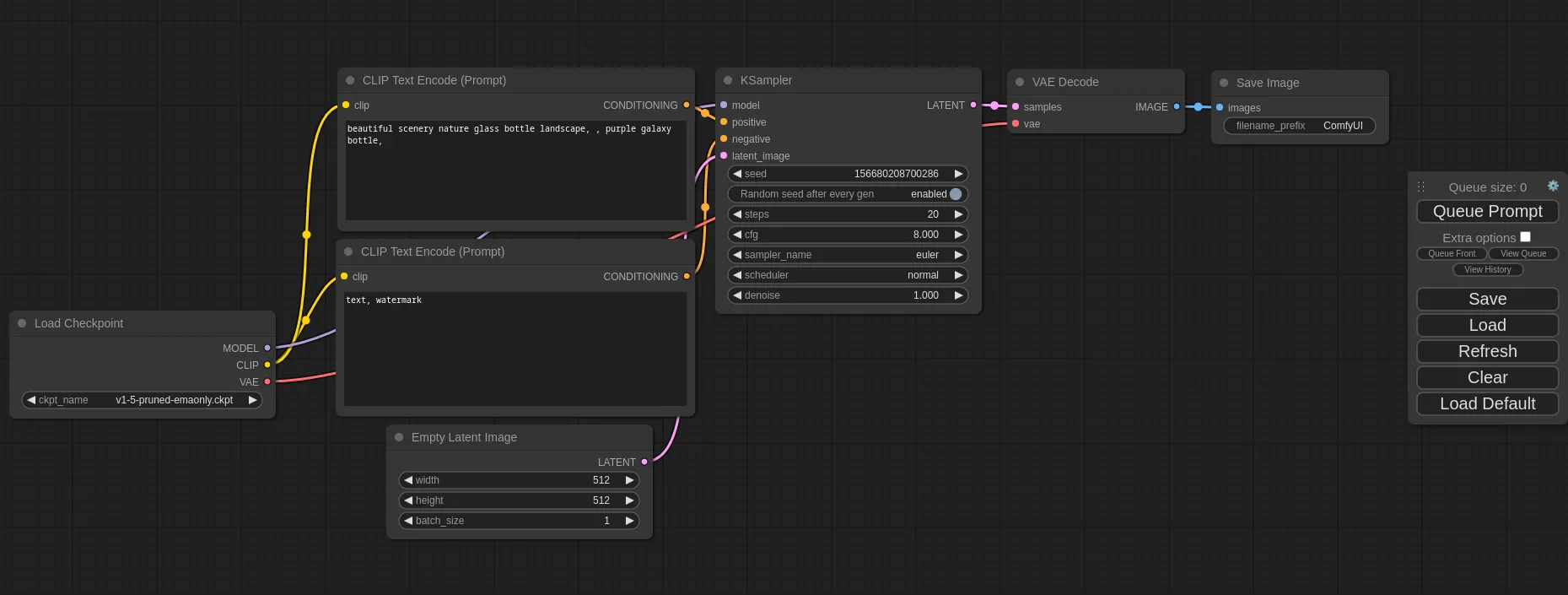 ComfyUI’s default text-to-image workflow: each box is one step, connected left to right.
The default workflow has two text boxes labeled CLIP Text Encode:
- The top one is your prompt: describe the picture, such as a cozy living room at night, a big TV showing a starry sky, warm lamp light, photo.
- The bottom one is the “negative” prompt: things you don’t want, such as blurry, low quality, text, watermark.
Click Run (or press Ctrl+Enter). A few seconds later, the image appears in the Save Image box at the right. It’s also saved to ComfyUI’s output folder; right-click the picture to save a copy elsewhere.
Run it again for a different image: each run uses a new random “seed”. To refine an image you like, keep its seed fixed in the KSampler box (set control after generate to fixed) and change the prompt.
Step 4: Try Better Models
Stable Diffusion 1.5 proves everything works, but newer models are much better at realistic detail, hands and text. ComfyUI includes ready-made workflow templates for newer models; open the templates browser from its menu, pick one, and download the models it asks for.
As a rough guide to what your card can handle:
| VRAM | What runs comfortably |
|---|---|
| 6–8GB | Stable Diffusion 1.5; SDXL with patience |
| 12GB | SDXL; smaller or compressed versions of the newest models |
| 16GB or more | the newest, largest image models |
If a model doesn’t fit, generation gets very slow or fails with an “out of memory” error; pick a smaller model or a compressed version of it.
Using Images Responsibly
- Check each model’s license. Some allow commercial use, others are for personal or non-commercial use only. The license is on the model’s download page.
- Don’t create images of real people without their consent, or images meant to deceive.
- Label AI images when you share them, so nobody mistakes them for photos.
Troubleshooting
“Out of memory” or a crash during generation: the model or image size is too big for your VRAM. Close games and other GPU-heavy apps, lower the width and height in the Empty Latent Image box, or use a smaller model.
Very slow (minutes per image): ComfyUI may be running on the CPU. Check that your graphics driver is up to date and that ComfyUI’s settings show your GPU.
A model download never starts: download the file from the link in the warning yourself and put it in the models/checkpoints folder shown in ComfyUI’s settings, then press R.
Faces or hands look wrong: that’s typical of older models. Try SDXL or a newer model, and describe the subject more precisely.