Run Local AI on Your Gaming PC with Ollama
Use the graphics card in your gaming PC to run AI models privately and fast: install Ollama on Windows, pick a model that fits your VRAM, confirm it's running on the GPU, and share it with the rest of the house.
Why Use the Gaming PC?
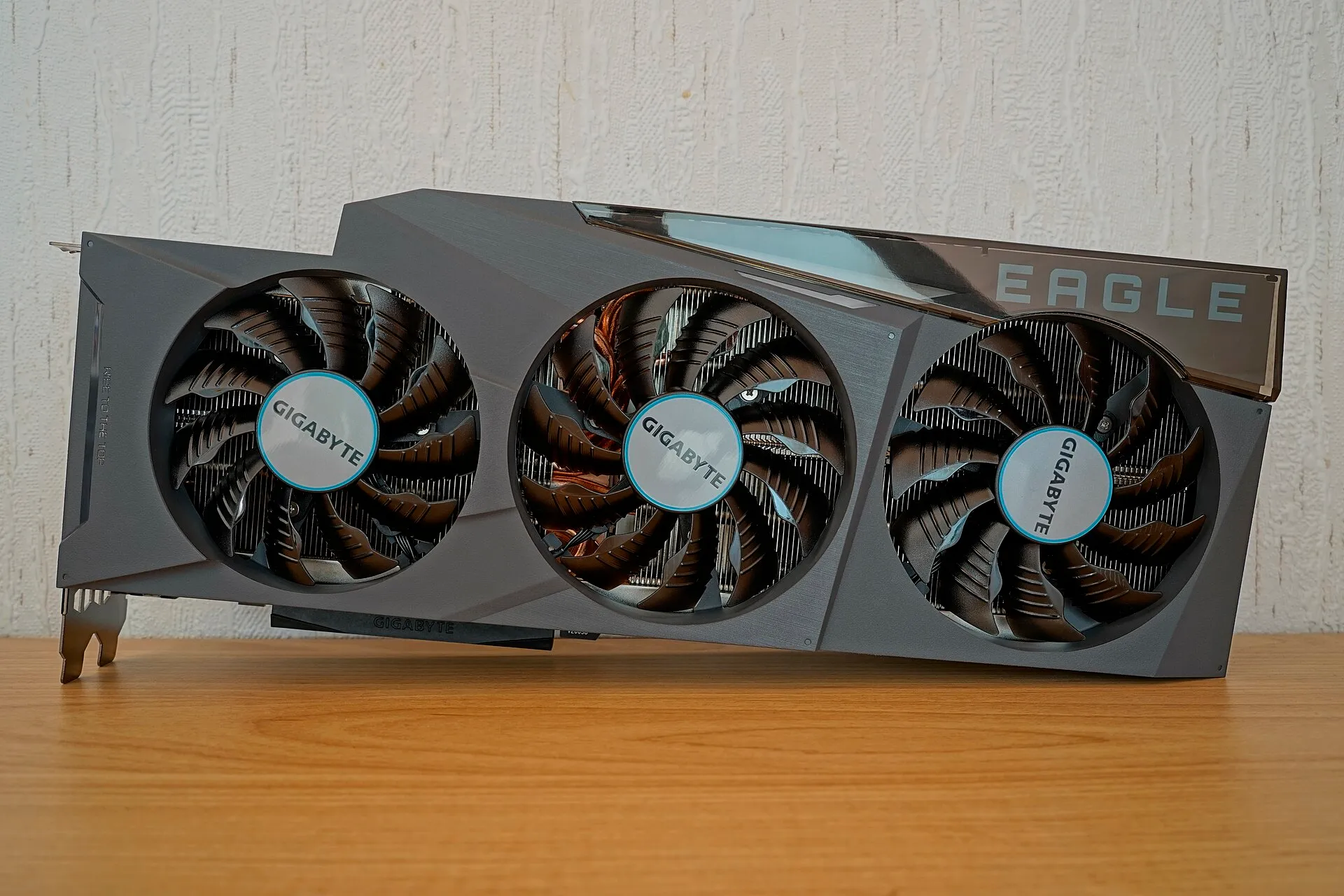
A Raspberry Pi can run small AI models, but slowly. The graphics card in a gaming PC is built for exactly the kind of maths these models do, so the same PC that plays games can answer questions many times faster, and run larger, smarter models, all without sending anything to the cloud.
The one spec that matters is your card’s VRAM (video memory). The model has to fit in it; if it doesn’t, part of it spills into normal RAM and everything slows down dramatically. Our best GPU for local LLMs guide explains why in detail.
What You’ll Need
- Windows 10 (22H2 or newer) or Windows 11
- An NVIDIA graphics card with an up-to-date driver (551.61 or newer), or a recent AMD Radeon card
- Enough free disk space for models: a few gigabytes each, more for big ones
Step 1: Check How Much VRAM You Have
Open Task Manager (Ctrl+Shift+Esc) → Performance → GPU. Under the graphs, Dedicated GPU memory is your VRAM, such as 8.0 GB or 12.0 GB.
Then pick a model size from this table. These are the 4-bit versions Ollama downloads by default, and they leave room for the conversation itself:
| Your VRAM | Model size that fits | Ollama models to try |
|---|---|---|
| 6–8GB | up to ~8B | llama3.1:8b, qwen3:8b, gemma3:4b |
| 12GB | 8B comfortably, some 12–14B | gemma3:12b, qwen3:14b |
| 16GB | 13–20B | qwen3:14b, gpt-oss:20b |
| 24GB or more | 27–34B | gemma3:27b, qwen3:32b |
New models appear constantly; the Ollama model library lists each one’s sizes. A bigger number (“14b”) means a smarter but slower and larger model.
Step 2: Install Ollama
- Download the Windows installer from ollama.com/download.
- Run
OllamaSetup.exe. It installs for your user account and doesn’t need administrator rights. - Ollama now runs in the background, with an icon in the system tray, and starts with Windows.
Open PowerShell or Command Prompt and check:
ollama --versionStep 3: Download a Model and Chat
Pick a model from the table that suits your card and run it, for example:
ollama run qwen3:8bThe first run downloads the model, then you get a chat prompt. Ask it something; type /bye to exit.
Step 4: Confirm It’s Using the Graphics Card
While a model is loaded (within a few minutes of chatting), open a second terminal and run:
ollama psLook at the PROCESSOR column:
- 100% GPU: the whole model is in VRAM. This is what you want.
- A split, such as 30%/70% CPU/GPU: the model doesn’t fit. Choose a smaller model.
- 100% CPU: Ollama isn’t using the graphics card at all. Update the graphics driver, restart Ollama from the tray icon, and check again.
Step 5: Use It from Other Devices (Optional)
To use the PC’s AI from a laptop or phone, typically through a chat app like Open WebUI, make Ollama listen on your home network:
- Quit Ollama from its tray icon.
- Open Start, search for Edit environment variables for your account, and add a new variable: name
OLLAMA_HOST, value0.0.0.0. - Start Ollama again from the Start menu. If Windows Firewall asks, allow it on private networks only.
Other devices can now reach it at http://YOUR-PC-IP:11434. Don’t forward that port on your router: it would let anyone on the internet use your PC.
Tips
- Games and AI share VRAM. Close the model (or quit Ollama) before gaming, or the game may run out of video memory. Ollama unloads idle models after a few minutes by default.
- Move the models folder if your system drive is small: set an
OLLAMA_MODELSenvironment variable to a folder on another drive, the same way as Step 5, then restart Ollama. - Prefer an app? LM Studio is a free desktop app for downloading and chatting with local models, with a point-and-click model browser. It’s an alternative to Ollama, not an add-on.
Troubleshooting
Very slow replies: run ollama ps. If it isn’t 100% GPU, pick a smaller model or one with fewer parameters.
“Out of memory” errors: close other GPU-heavy apps (games, video editors, browsers with many tabs) and try again, or use a smaller model.
Other devices can’t connect: check the OLLAMA_HOST variable is set and Ollama was restarted afterwards, and that your Windows network is set to Private.