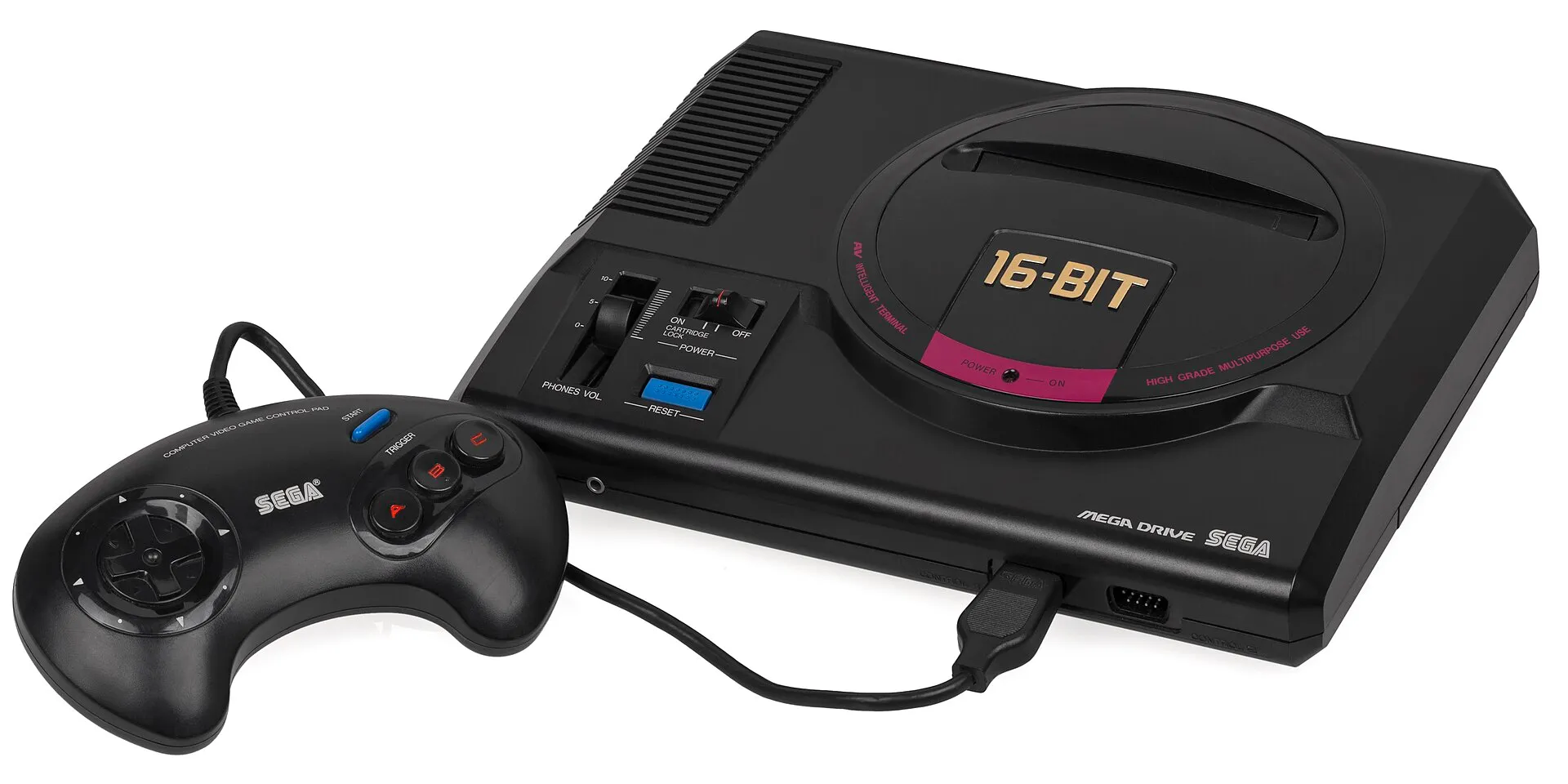
Build a Plug-and-Play Retro Console with Batocera on a Raspberry Pi
Turn a Raspberry Pi into a retro games console that boots straight to a game menu: flash Batocera, add your own games and BIOS files over the network, and pair a controller. Simpler than RetroPie.
Why Batocera?
Batocera is a free operating system made for retro gaming. Unlike setting up emulators on Raspberry Pi OS (or even RetroPie), there’s nothing to install or configure in a terminal: write it to a card, plug the Pi into the TV, and it boots straight into a game menu that you drive with a controller. Emulators for dozens of classic consoles and computers come built in.
About games: Batocera includes a few free games to get started. Classic console games and the BIOS files some systems need are copyrighted, so you supply them yourself. Only use copies of games you own, or the many free homebrew games made for old systems.
What You’ll Need
- A Raspberry Pi 5 (a Pi 4 also works, with less power for the more demanding systems)
- A microSD card of 32GB or more, or larger if you’ll keep many games on it. A USB SSD is faster.
- A controller. Wired USB controllers just work; Xbox, PlayStation, Switch Pro and 8BitDo controllers pair over Bluetooth.
- A TV, HDMI cable (micro-HDMI on the Pi), and the official power supply
- Cooling. Emulation keeps the Pi busy; the Active Cooler or a case with a fan is worth it.
Step 1: Flash Batocera
- Go to batocera.org, open Download, and get the image for your Pi model (Pi 5 and Pi 4 have separate images).
- Open Raspberry Pi Imager, choose Choose OS → Use custom, select the downloaded file, choose your microSD card, and write it. (balenaEtcher works too.)
Step 2: First Boot
Put the card in the Pi, connect the TV, controller and Ethernet (or set up Wi-Fi in a moment), and power on.
The first boot takes a few minutes while Batocera expands to fill the card. Then the game menu appears.
- Wi-Fi: press Start to open the main menu → Network Settings → turn on Wi-Fi and choose your network.
- Controller buttons: a wired controller usually works immediately. If the buttons are wrong, go to Controller & Bluetooth Settings → Controller Mapping and follow the prompts.
Step 3: Pair a Bluetooth Controller
- Main menu → Controller & Bluetooth Settings → Pair a Bluetooth controller.
- Put the controller in pairing mode (for example, hold the pairing button on an Xbox controller, or Share + PS on a PlayStation controller).
- Select it when it appears.
Step 4: Add Your Games Over the Network
Batocera shares its storage on your home network, so you can copy games from your computer:
- Windows: open File Explorer and go to
\\BATOCERA\share - Mac: in Finder, Go → Connect to Server and enter
smb://batocera.local/share
If the name doesn’t work, use the Pi’s IP address instead (main menu → Network Settings shows it), such as \\192.168.1.50\share.
Inside share, open the roms folder. There’s a folder for each system, such as nes, snes, megadrive or psx. Copy each game into its system’s folder. Each folder has an _info.txt file listing the file types it accepts.
When you’re done, refresh the game list from the main menu: Game Settings → Update Gamelists.
Step 5: Add BIOS Files (Some Systems)
Some systems, like the PlayStation, need a BIOS file from the original console. Copy BIOS files into the bios folder on the same share.
To see exactly which files a system needs, go to the main menu → System Settings → Missing BIOS. It lists each file’s required name and folder, and a checksum to confirm you have the right version.
Step 6: Play
Pick a system, pick a game, and press A. While playing:
- Hotkey + Start quits back to the menu. The hotkey is usually the Select or Home/Guide button.
- Hotkey + Y / X saves and loads a save state, handy for games without save points.
Which Systems Run Well on a Pi 5?
- Excellent: 8-bit and 16-bit consoles (NES, SNES, Mega Drive/Genesis, Game Boy and Game Boy Advance), arcade classics, and the original PlayStation.
- Good with some games: Nintendo 64, Dreamcast and PSP vary by game; many run well, some don’t.
- Too demanding: newer systems like the GameCube, Wii, PlayStation 2 and Switch need a PC.
Troubleshooting
A game doesn’t appear: check it’s in the right system folder and in a file type listed in that folder’s _info.txt, then Update Gamelists.
“BIOS missing” or a black screen when starting: check Missing BIOS for that system.
Can’t find \\BATOCERA on the network: use the IP address instead, and check the Pi is connected (wired is most reliable for big copies).
Stutters in demanding games: make sure the Pi is cooled and on the official power supply; underpowered or hot Pis slow down.
Want an arcade machine? Batocera is the software behind our bartop arcade cabinet build, and it can also run on an old CRT TV.