Stream PC Games to Your TV with Sunshine and Moonlight
Play the games on your gaming PC from the couch: set up the free Sunshine host on Windows and the Moonlight app on a Google TV, Android TV, Fire TV or Apple TV box, pair them, and tune for low lag.
How It Works
Sunshine runs on your gaming PC. It captures the game, compresses the video with your graphics card’s hardware encoder, and sends it over your home network. Moonlight runs on your TV box and plays that stream, sending your controller input back to the PC. Both are free and open source.
Unlike cloud gaming services, there’s no subscription and you play games you already own, from Steam, Epic, Game Pass or anywhere else. The catch is that your PC has to be on, and your home network has to be good enough.
What You’ll Need
- A Windows gaming PC with an NVIDIA, AMD or Intel graphics card (they all have the hardware video encoder Sunshine uses). Sunshine also runs on Linux and macOS; this tutorial uses Windows.
- A TV device that runs Moonlight:
- Google TV, Android TV and NVIDIA Shield: Moonlight from Google Play
- Fire TV with Fire OS (Fire TV Stick 4K Max, Fire TV Cube): Moonlight from the Amazon Appstore. Vega OS Fire TV sticks can’t run it.
- Apple TV: Moonlight from the App Store
- Raspberry Pi: Moonlight for Raspberry Pi, from moonlight-stream.org
- Roku has no Moonlight app.
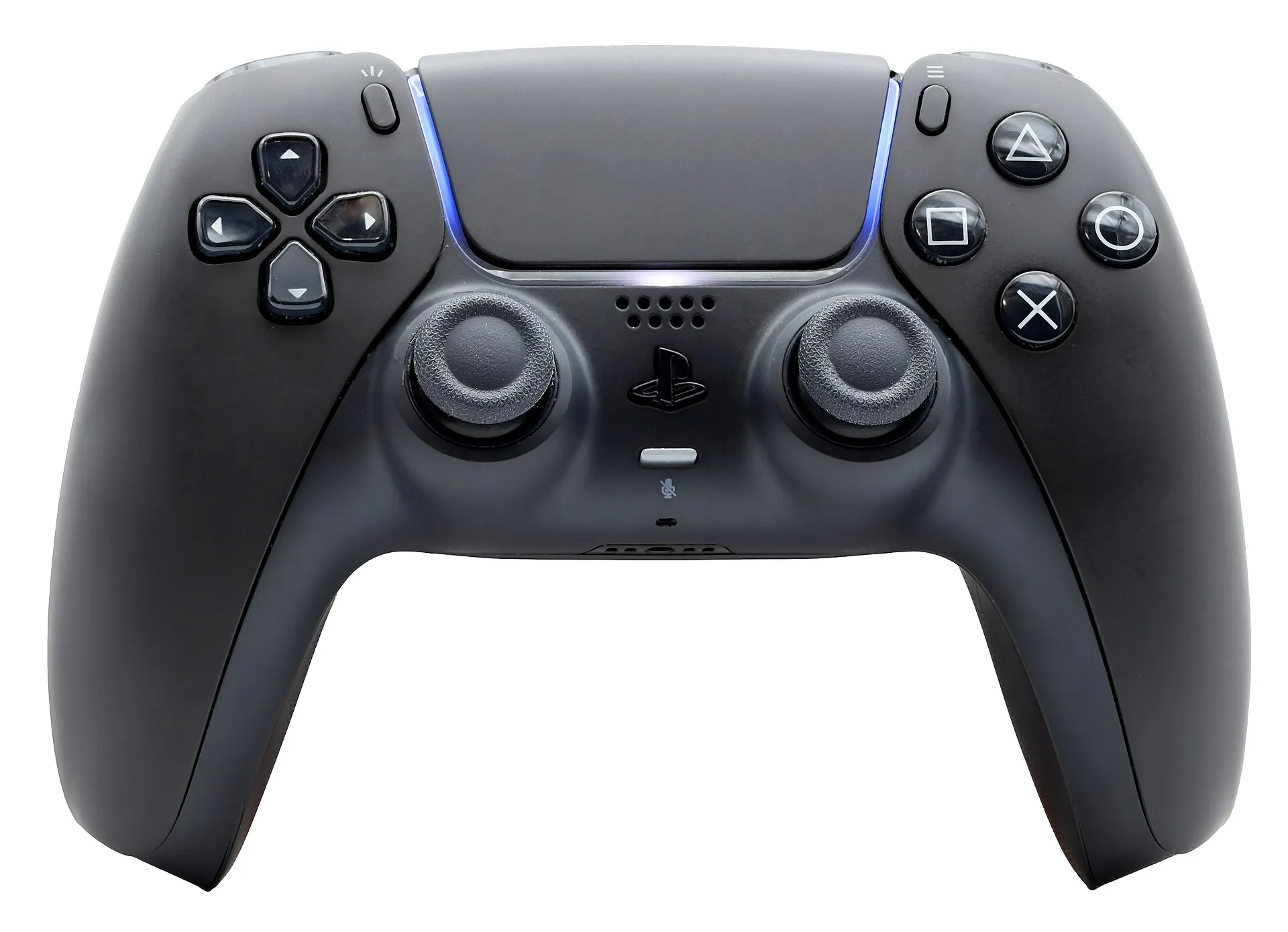
- A controller paired to the TV box over Bluetooth. Xbox and PlayStation controllers work with most boxes.
- A wired PC. The PC should be plugged into your router with Ethernet. The TV box can use Wi-Fi on 5GHz or Wi-Fi 6, but Ethernet is better if it has a port.
Step 1: Install Sunshine on the PC
- Download the latest Windows installer (
.msi, x64) from the Sunshine releases page on GitHub (LizardByte/Sunshine), linked from app.lizardbyte.dev. - Run it. When it lists optional components, leave the defaults rather than ticking everything.
- Open https://localhost:47990 in a browser on the PC. Your browser warns that the connection isn’t private; Sunshine uses a self-signed certificate, so it’s safe to continue.
- Create a username and password for Sunshine’s web page and write them down.
Sunshine now runs in the background and starts with Windows. Out of the box it offers Desktop (your whole screen) and Steam Big Picture, which is the easiest way to launch games with a controller. You can add other games or launchers under Applications.
Step 2: Install Moonlight on the TV Box
Install Moonlight Game Streaming from your TV box’s app store (see the list above) and open it. If the PC and TV box are on the same network, your PC appears automatically, usually with a padlock icon.
If it doesn’t appear, find the PC’s IP address (on the PC, run ipconfig in a command prompt and look for IPv4 Address), then add it manually in Moonlight with the + button.
Step 3: Pair the TV Box with the PC
- In Moonlight, select your PC. It shows a 4-digit PIN.
- On the PC, open https://localhost:47990, sign in, and go to the PIN tab.
- Enter the PIN, give the device a name (like “Living room TV”), and submit.
Moonlight shows a success message and lists the PC’s applications. Pairing is a one-time step per device.
Step 4: Play
Select Steam Big Picture (or Desktop) in Moonlight. Your PC’s screen appears on the TV and your controller drives it.
To end the stream on Android-based boxes, press Start + Back + LB + RB together on an Xbox-style controller (Start + Select + L1 + R1 on PlayStation layouts), or use the remote’s Back button. The game keeps running on the PC until you quit it there or choose Quit Session on the PC’s app list in Moonlight.
Step 5: Tune for Low Lag
Open Moonlight’s Settings on the TV box:
- Resolution and frame rate: match your TV, such as 1080p60 or 4K60. Don’t stream above what the TV displays.
- Video bitrate: Moonlight picks a default for your resolution. If the picture stutters or freezes, lower it; if it looks blocky in fast motion and the network is wired, raise it.
- Video codec: HEVC (H.265) or AV1 look better than H.264 at the same bitrate, if both the PC’s graphics card and the TV box support them. Auto chooses for you.
- HDR: turn it on only if the TV, TV box and PC all support HDR, and Windows’ HDR setting is on.
- Frame pacing: the “smoothest video” option adds a little latency to even out stutter; “lowest latency” does the opposite.
Moonlight’s on-screen performance stats (in Settings) show network latency and dropped frames, which tells you whether the network or the decoder is the bottleneck.
Troubleshooting
The PC doesn’t show up: add it by IP address. Check Windows set your network to Private, not Public, so the firewall allows local connections.
Black screen when the stream starts: Sunshine captures the display the graphics card drives. On laptops with two GPUs, or PCs with the monitor off or unplugged, use a dummy HDMI plug or keep a display connected.
Lag or stutter: in order of impact, use Ethernet on the PC, use Ethernet or 5GHz Wi-Fi on the TV box, lower the bitrate, then drop from 4K to 1080p. A cheap streaming stick may also struggle to decode high-bitrate 4K; a faster box such as the NVIDIA Shield TV Pro is a favorite for Moonlight.
Controller not detected in games: make sure it’s connected to the TV box, not the PC. In Steam Big Picture, check Settings → Controller.
Want to play away from home? Moonlight can stream over the internet, but it needs router port forwarding or a private network tool, and it’s beyond this tutorial. Start with streaming at home.