Make Any Speakers Wireless with AirPlay and Spotify Connect
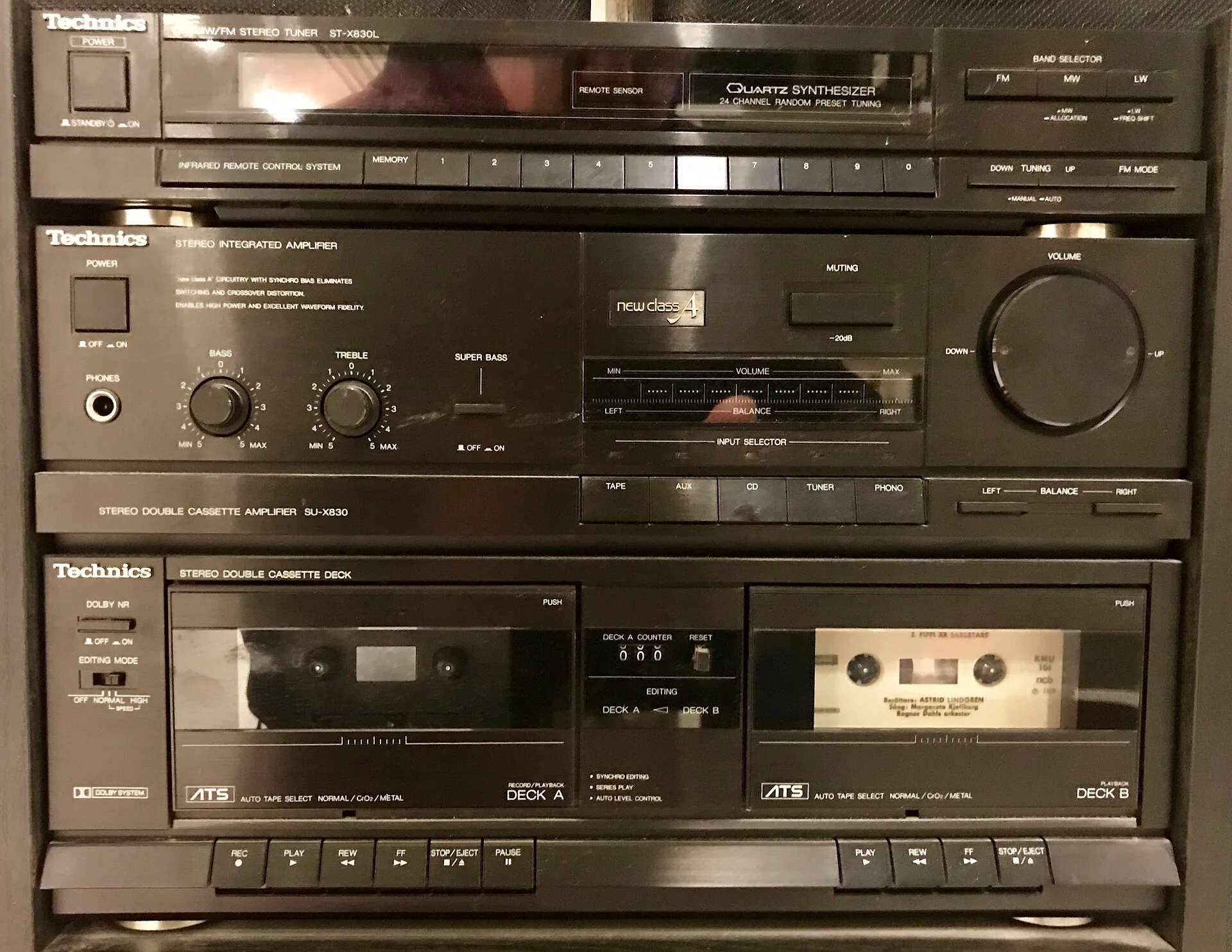
Give old speakers or a stereo a second life: turn a Raspberry Pi into an AirPlay receiver for iPhones and Macs with Shairport Sync, and a Spotify Connect speaker with Raspotify. Cheap, quick and both at once.
What You’re Building
A good pair of speakers or an old hi-fi doesn’t need replacing just because it has no Wi-Fi. A Raspberry Pi plugged into it becomes:
- an AirPlay speaker: from an iPhone, iPad or Mac, pick it in Control Center or the AirPlay menu, and
- a Spotify Connect speaker: in the Spotify app, pick it from the device list, and your phone becomes the remote.
Both run at the same time, start by themselves, and cost nothing beyond the hardware.
What You’ll Need
- A Raspberry Pi with Raspberry Pi OS. Any model from the Pi 3 on works; the Pi Zero 2 W is a tidy, cheap choice. (The original Pi Zero and Pi 1 aren’t supported by Raspotify.)
- A way to get sound out:
- The Pi 3 and Pi 4 have a 3.5mm headphone jack, which is fine for casual listening.
- The Pi 5 and Pi Zero 2 W have no headphone jack, so add a USB audio adapter or a DAC HAT (an add-on sound card board), which also sounds better on any Pi.
- Speakers with an input: powered speakers, a stereo amplifier, or a soundbar with an AUX or optical input
- Spotify Premium for Spotify Connect; Raspotify doesn’t work with free accounts
Step 1: Check the Sound Output
Connect the Pi to your speakers, then list the sound devices:
aplay -lYou’ll see entries like Headphones, vc4hdmi (HDMI) or USB Audio Device. Play a test sound through the default output:
speaker-test -c 2 -t wav -l 1A voice should say “front left” and “front right”. If you hear nothing, or the sound goes to the wrong device, run sudo raspi-config → System Options → Audio and choose your output.
Step 2: Install AirPlay (Shairport Sync)
Shairport Sync is in Raspberry Pi OS’s package list:
sudo apt update
sudo apt install -y shairport-sync
It starts straight away. On your iPhone, open Control Center, tap the AirPlay icon on the music player, and your Pi appears using its hostname. Pick it and play something.
Give it a friendly name
Edit the settings file:
sudo nano /etc/shairport-sync.confIn the general section, find the name line, remove the // in front of it, and set the name:
general = {
	name = "Kitchen Speakers";
Save, then restart it:
sudo systemctl restart shairport-syncAbout AirPlay 2: the packaged version speaks the original AirPlay, which iPhones, iPads and Macs all still support. Playing to several rooms at once alongside HomePods needs AirPlay 2, which requires building Shairport Sync yourself; its BUILD guide on GitHub walks through it.
Step 3: Install Spotify Connect (Raspotify)
Raspotify’s install script adds its package and starts the service:
sudo apt-get -y install curl && curl -sL https://dtcooper.github.io/raspotify/install.sh | shOpen Spotify on your phone, start a song, tap the devices icon, and pick the Pi. It uses a default name until you rename it below. Spotify needs your phone and the Pi on the same network.
Name it and raise the quality
sudo nano /etc/raspotify/confUncomment (remove the #) and change these lines:
LIBRESPOT_NAME="Kitchen Speakers"
LIBRESPOT_BITRATE="320"
Save, then restart:
sudo systemctl restart raspotifyRaspotify is built on librespot, an unofficial Spotify client. Its developers ask that you use it only for personal, private listening, not in shops or public spaces.
Using Both
AirPlay and Spotify Connect share the same speakers, so play from one at a time. If one won’t start while the other has just finished, give it a few seconds, or pause the first app properly.
Tips
- Use Ethernet or a strong Wi-Fi signal. Dropouts are almost always Wi-Fi.
- Set the Pi’s volume once, then use the amplifier’s. Run
alsamixer, set the output to about 80–90%, and control volume from your phone or amp; this avoids distortion. - More rooms: each Pi is an independent speaker; set one up per room with its own name.
Troubleshooting
The Pi doesn’t appear in AirPlay: check your phone and the Pi are on the same network and Wi-Fi band setup, and that sudo systemctl status shairport-sync says “active (running)”.
Spotify doesn’t list the Pi: check the Spotify account is Premium, and sudo systemctl status raspotify is running. Some guest Wi-Fi networks block devices from seeing each other.
Crackling or hiss: the Pi’s built-in headphone jack is basic. A USB audio adapter or DAC HAT makes a real difference.
No sound after adding a USB adapter: select it in sudo raspi-config → System Options → Audio, then restart both services.